Docs / Library, Calendar and posting
Schedule a post
Put a video on a day and a time.
#1. Open the Calendar
Open Library, then Calendar. Every post you've scheduled sits on its day. A tick means it went out.
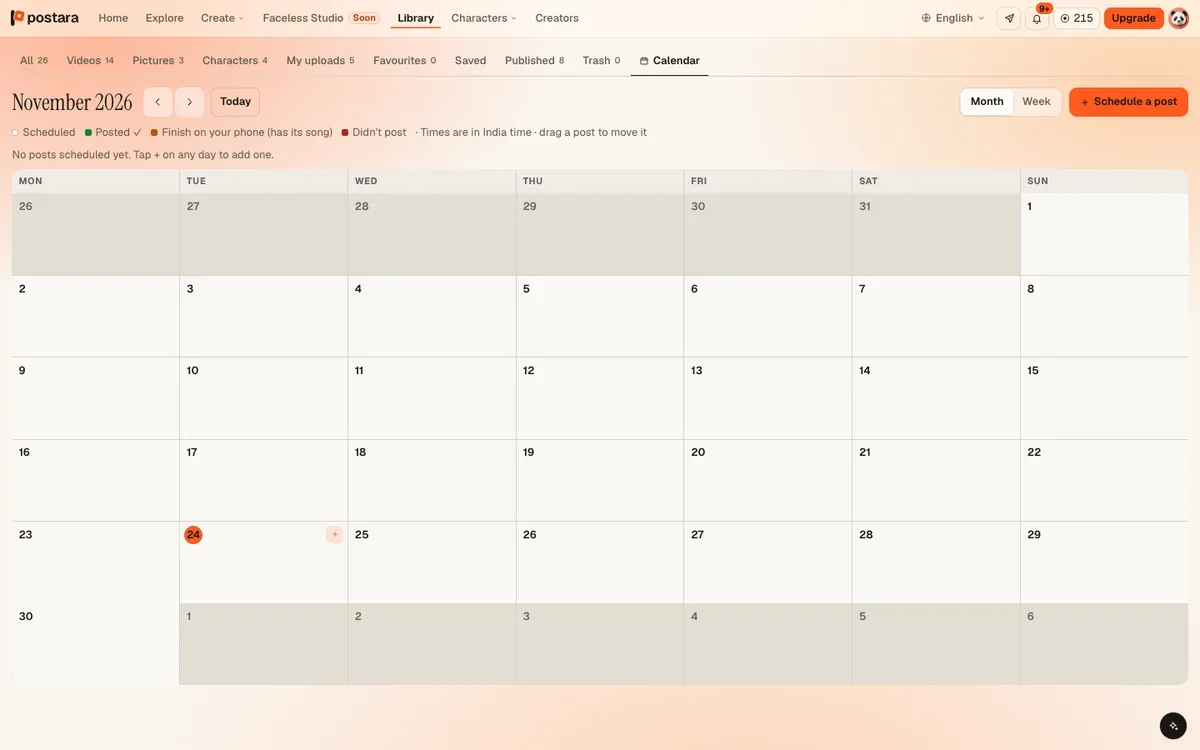
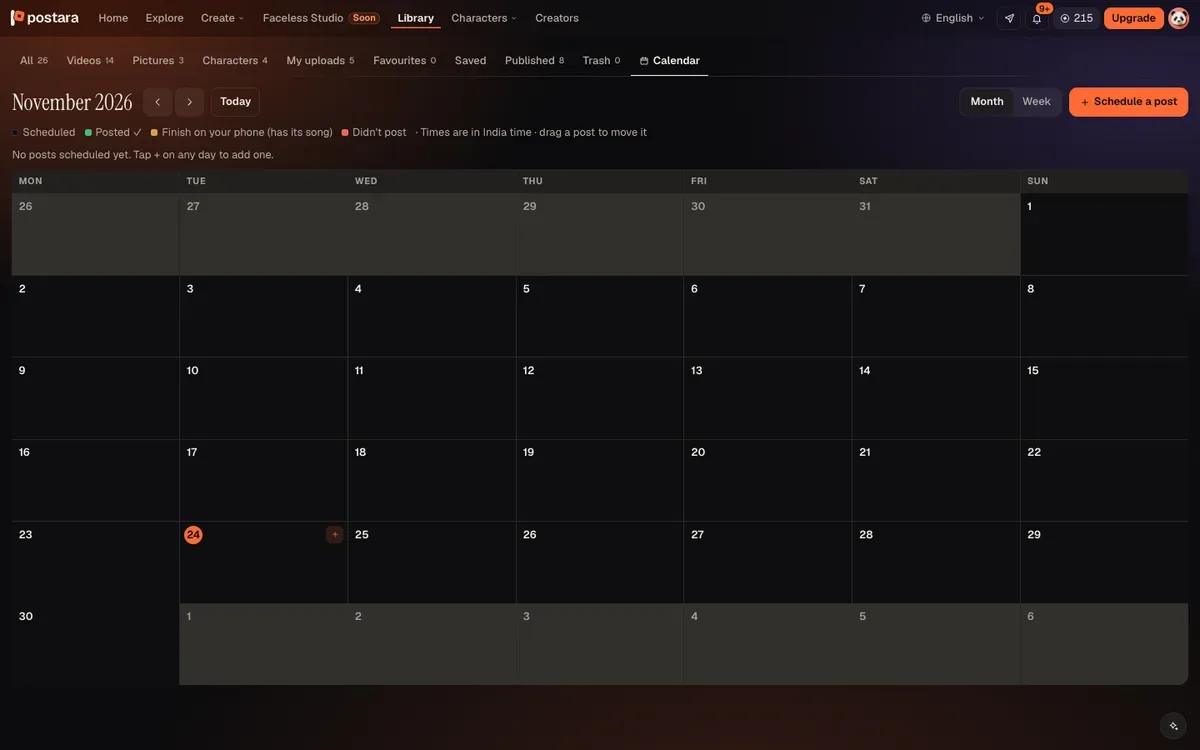
#2. Schedule a post
Tap + Schedule a post, or + on a day. Pick a video from your Library or your uploads, choose where it goes (Instagram, YouTube, LinkedIn, X or Threads, whichever you've connected), then set the time.


#3. Month or week
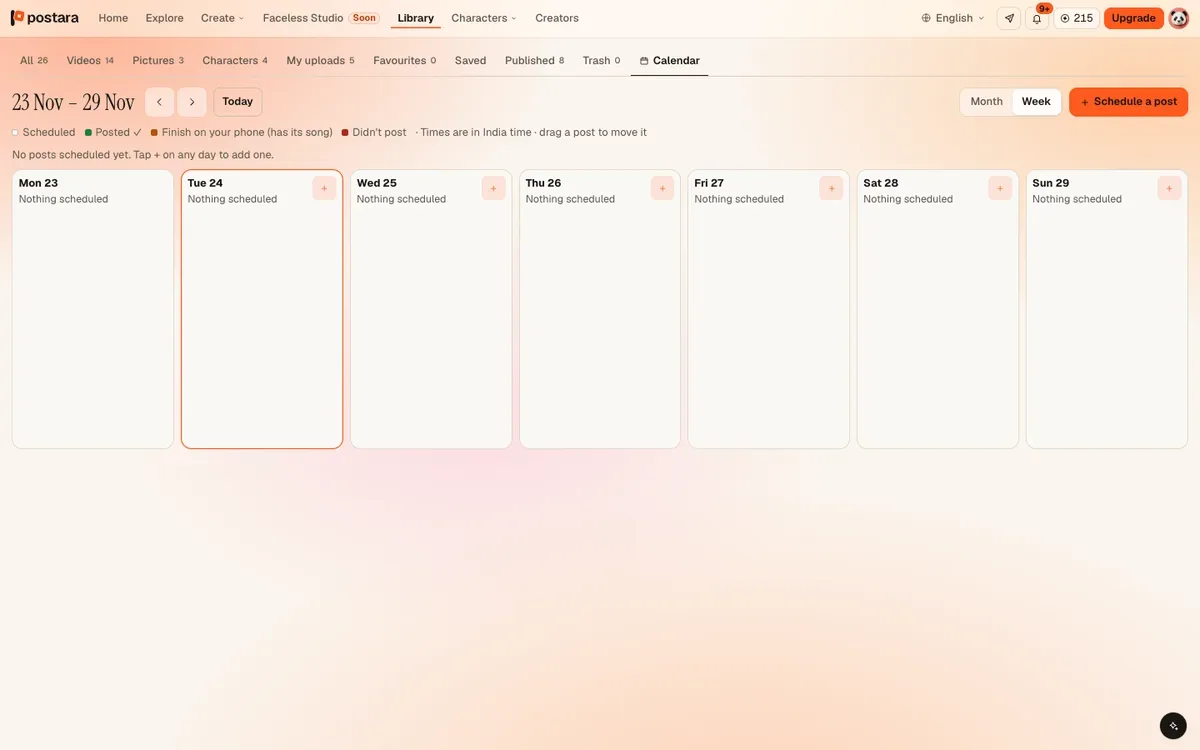
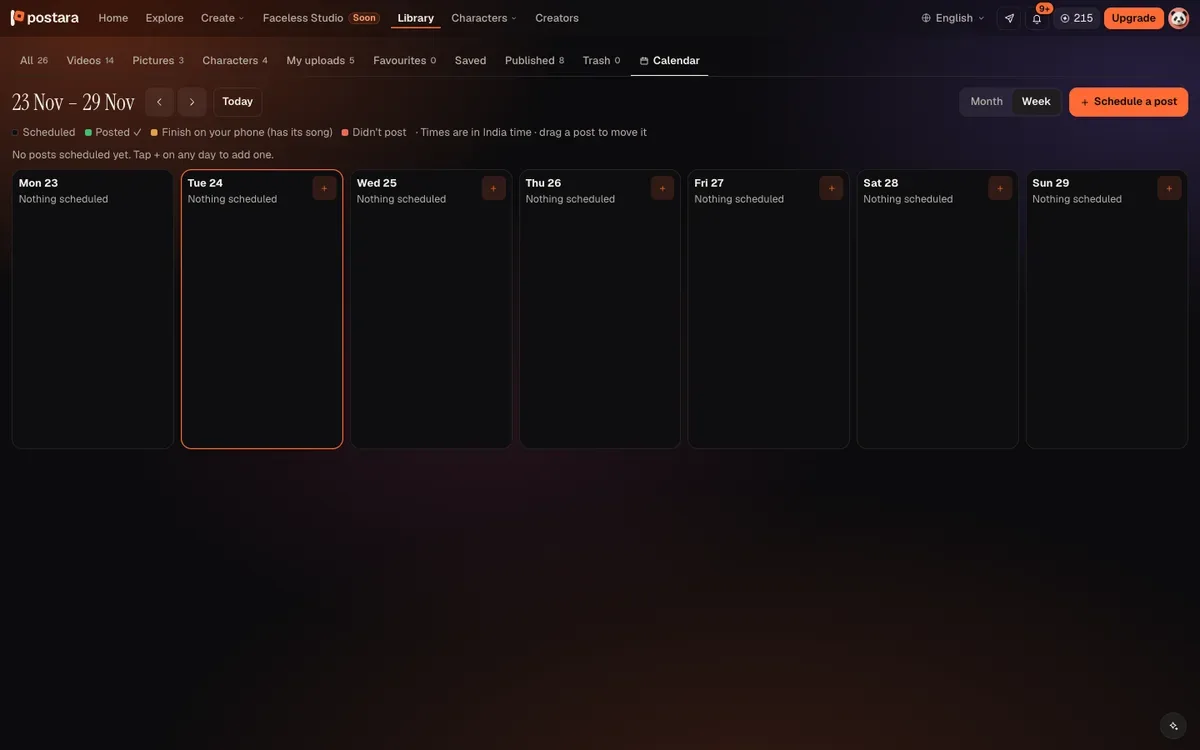
#Good to know
- Tap a post to change its day, time, words or places. You can change or cancel it up to 5 minutes before it goes.
- A video with a song that has to be added on your phone says Finish on your phone. We remind you at the time.
- If a post doesn't go out, the bell tells you why.
- Times are in your account's time zone (the time zone of your browser when you first came, unless you changed it); the Calendar says which.